![BCS_Logo_Horizontal_Reverse_CMYK - Copy-1.png]](https://help.getbcs.com/hs-fs/hubfs/BCS_Logo_Horizontal_Reverse_CMYK%20-%20Copy-1.png?height=40&name=BCS_Logo_Horizontal_Reverse_CMYK%20-%20Copy-1.png)
Availability: Available to all hiring company users.
Overview 📋
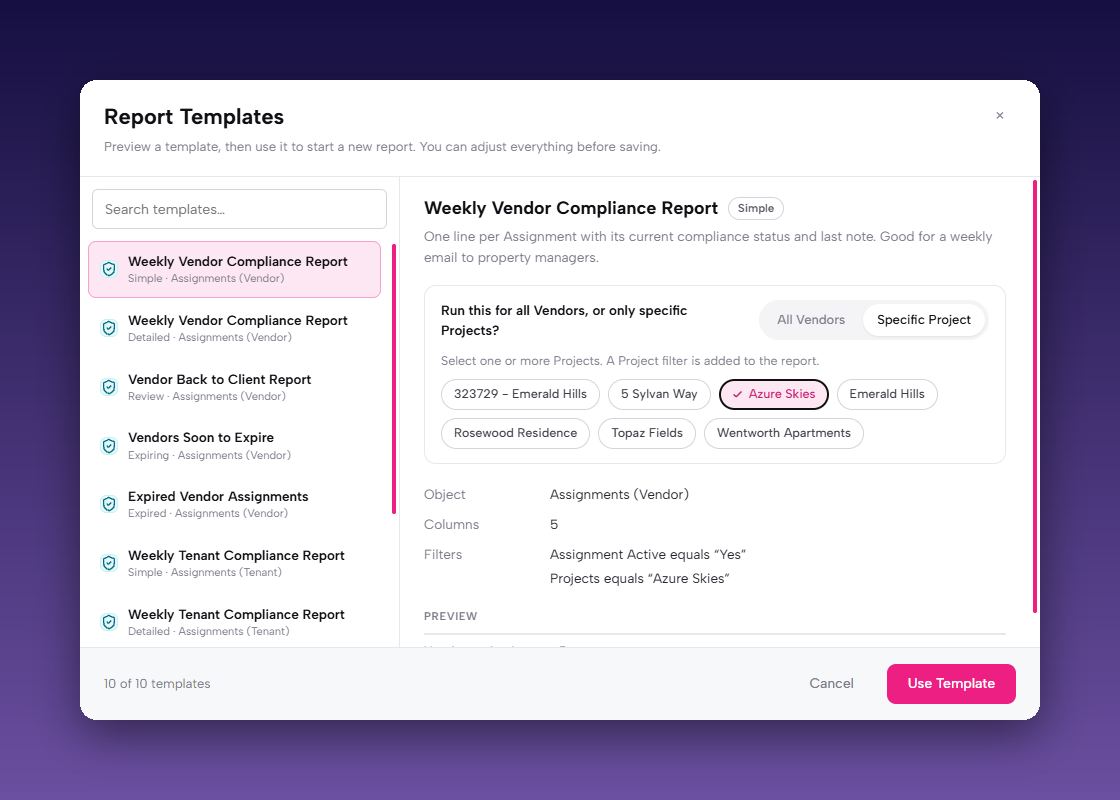
Report Templates give you a head start on Custom Reports. Instead of building a report from a blank page, pick one of 10 ready-made templates — weekly compliance, expiring, expired, and back-to-client reports for both vendors and tenants — preview it with your live data, and turn it into a saved report in a few clicks. Everything stays editable before you save.
Background 🧭
Most teams end up building the same handful of reports: who's compliant this week, who's about to expire, who already has, and what needs a decision from you. Report Templates package those common reports with the right object, columns, and filters already set, so you don't have to know which fields to pick to get a useful report.
What's new ✨
- A new Report Templates button on the Custom Reports page, next to New Report
- 10 templates — five for vendors and five matching ones for tenants
- A live preview of each template using your own data (up to 5 rows)
- A one-click option to run a template for all vendors/tenants or only specific projects
- Use Template opens the report builder pre-filled, so you can tweak columns and filters before saving
The available templates 🗂️
Each template is available in a vendor version (Assignments – Vendor) and a tenant version (Assignments – Tenant).
- Weekly Compliance Report — Simple (5 columns): one line per assignment with its current compliance status and last note. Great for a weekly email to property managers.
- Weekly Compliance Report — Detailed (9 columns): everything in the simple version plus next expiration date, General Liability limits, and contact details for follow-up.
- Back to Client Report (7 columns): assignments sent back to you for a decision — exceptions, waivers, and items BCS could not resolve with the vendor or tenant.
- Soon to Expire (7 columns): assignments expiring in the next 30 days, with contact details for outreach.
- Expired Assignments (8 columns): assignments already past their expiration date.
💡 All templates except Back to Client are limited to active assignments.
Creating a report from a template 🛠️
- Go to Insurance Tracking → Custom Reports and click Report Templates (top right).
- Browse the list on the left, or use Search templates… to find one by name.
- Click a template to see its description, object, number of columns, filters, and a live preview of up to 5 rows.
- Choose who the report covers:
- All Vendors (or All Tenants) — the whole portfolio, or
- Specific Project — select one or more projects. A Project filter is added to the report and the project name is added to the report name (for example, "Weekly Vendor Compliance Report — Azure Skies").
- Click Use Template.
Adjusting before you save ✏️
Use Template opens the regular report builder with a "From template" tag and the columns already selected. From here you can:
- Add, remove, or reorder columns — or use Build with RiskBot to describe changes in plain language
- Go Back to rename the report or update its description
- On Filters & Save, review the pre-set filters and add conditions or groups (AND / OR)
- Click Preview Report to check the output
When it looks right, click Save Report — or Save & Email to send it right away. The report then appears in your Saved Reports list like any other custom report, where you can edit, email, or export it to Excel or CSV.
Tips ✅
- 📬 Start with Weekly Compliance Report — Simple for property managers; switch to Detailed when your team is doing the follow-up and needs contact details and limits.
- 🏢 Managing several properties? Create one report per project with Specific Project so each property manager only gets their own assignments.
- ⏰ Pair Soon to Expire with Expired Assignments for a complete picture of upcoming and past-due coverage.
- 🧩 Templates are a starting point — nothing is locked. Add columns, filters, or policy-level details the same way you would in any Custom Report.
Questions? Reach out to customersupport@getbcs.com.