![BCS_Logo_Horizontal_Reverse_CMYK - Copy-1.png]](https://help.getbcs.com/hs-fs/hubfs/BCS_Logo_Horizontal_Reverse_CMYK%20-%20Copy-1.png?height=40&name=BCS_Logo_Horizontal_Reverse_CMYK%20-%20Copy-1.png)
Availability: All Insurance Tracking clients — Self-Service and Full-Service.
Overview
Every compliance assignment in BCS can have an escalation contact: the person at your company who gets an email when a vendor on that assignment needs your attention. Setting the right escalation contact makes sure problems land in front of someone who can act on them, instead of sitting in a queue.
You can now change the escalation contact on many assignments at once with the new Change Escalation Contact bulk action on the Assignments page. 🎉
🚨 What is an escalation contact?
The escalation contact is an internal user at your company — not someone at the vendor. They must be set up as a user in BCS. When a vendor reaches an escalation status (also called Back to Client), BCS emails the escalation contact so they can step in.
Think of it as the answer to: "When automation and follow-ups can't get this vendor compliant, who on our side should hear about it?" Typical choices are the property manager, project manager, buyer or contract owner who works with that vendor.
📬 When does the escalation contact get an email?
The escalation contact is notified whenever a vendor on the assignment moves into an escalation status, for example:
- Unresponsive — the vendor hasn't responded to BCS's automated requests. (Initial notices go out up to 3 times at 8-day intervals; if there's still no response, the vendor is flagged Unresponsive.)
- Escalated to Client — the vendor is pushing back, refusing to work with the requirements, or something else is blocking the compliance process that needs a decision from your side.
- Your own custom escalation statuses — any additional escalation statuses your company has set up.
Escalated vendors also show up in the In Escalation and Unresponsive tiles on your Home dashboard and in the Escalation column on the Assignments page.
✨ Change the escalation contact on multiple assignments
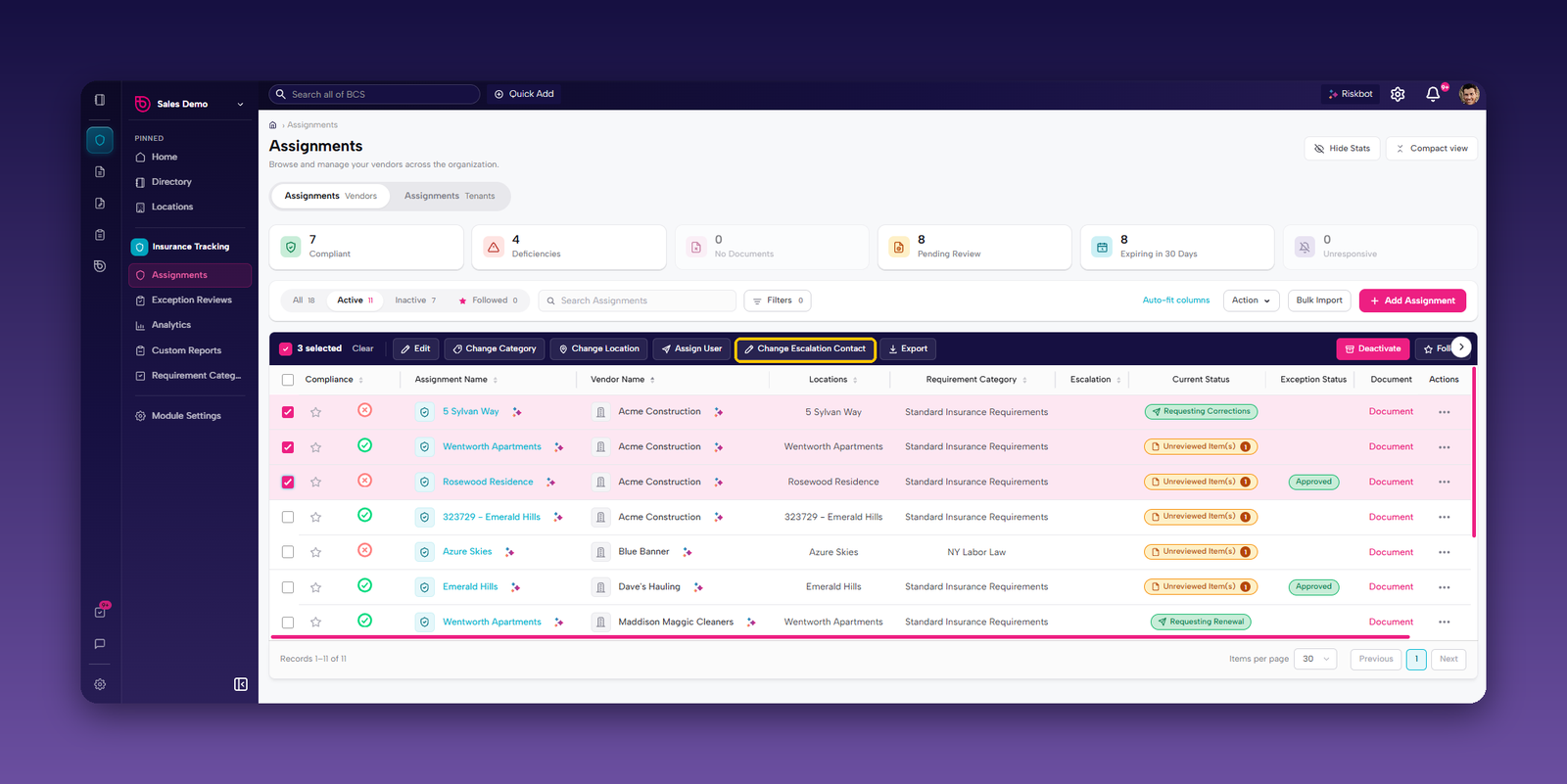
- Go to Insurance Tracking → Assignments.
- Check the box next to each assignment you want to update. Use filters or search first to narrow the list (for example, all assignments at one location).
- In the blue bulk-action bar, click Change Escalation Contact.
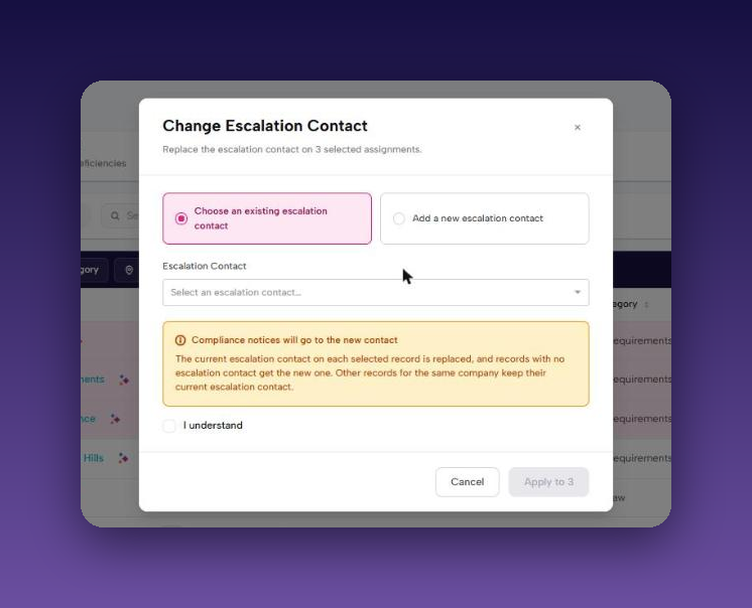
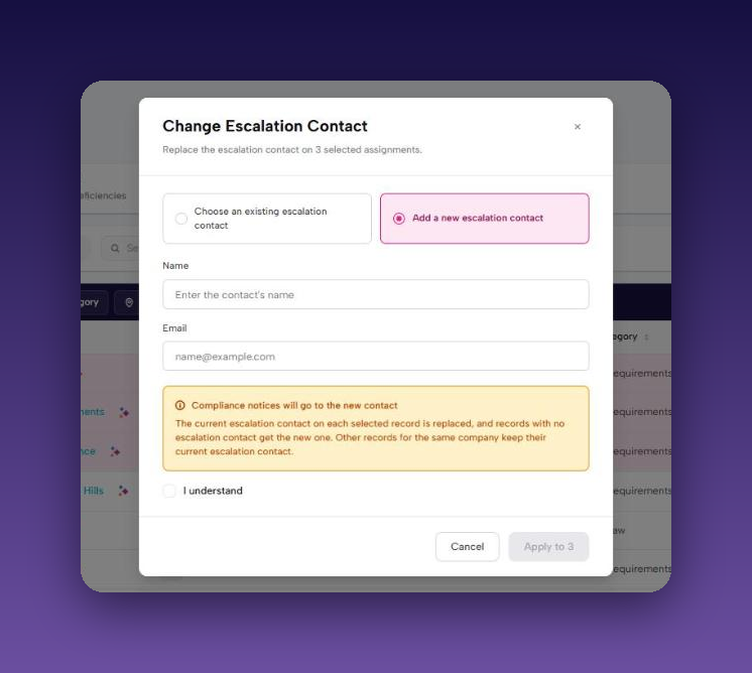
- Choose how to set the contact:
- Choose an existing escalation contact — pick a user from the Escalation Contact dropdown.
- Add a new escalation contact — enter the person's Name and Email.
- Read the notice, then check I understand.
- Click Apply to [number]. The button shows how many assignments will be updated.
⚠️ What happens when you apply
- Replaced: the current escalation contact on each selected assignment is replaced with the new one.
- Filled in: selected assignments that had no escalation contact get the new one.
- Untouched: other assignments for the same vendor that you did not select keep their current escalation contact.
- From then on, escalation notices for the selected assignments go to the new contact.
💡 Tips
- 🔁 Someone leaving or changing roles? Filter Assignments to their locations, select all, and reassign their escalations in one step.
- 🏢 Match the contact to the location. The best escalation contact is usually whoever manages the relationship with that vendor at that site.
- 🧹 Fill the gaps. Assignments with no escalation contact mean escalations have nowhere to go — select them and assign someone.
- 👀 Double-check your selection. Only checked assignments change, so a vendor can have different escalation contacts at different locations.
Questions? Email customersupport@getbcs.com.