![BCS_Logo_Horizontal_Reverse_CMYK - Copy-1.png]](https://help.getbcs.com/hs-fs/hubfs/BCS_Logo_Horizontal_Reverse_CMYK%20-%20Copy-1.png?height=40&name=BCS_Logo_Horizontal_Reverse_CMYK%20-%20Copy-1.png)
See every vendor's modules and compliance at a glance, then jump straight to what needs attention.
Availability: All clients.
The Directory has a new and improved view that shows which modules each company is using and whether it's compliant. Every vendor record also has a new Overview tab that sums up the status of each module and gets you there in one click.
Here's what you can do
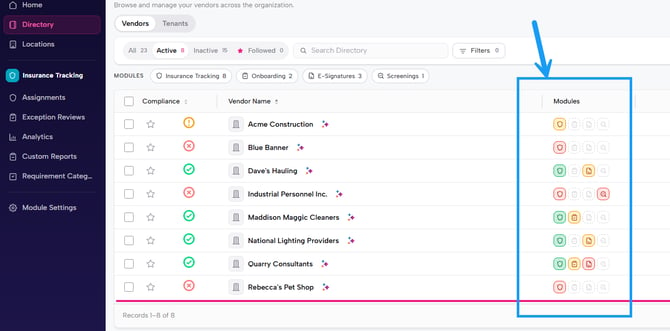
- ✅ See compliance in the Directory list. The Compliance column shows each company's status at a glance: compliant, non-compliant, or needs attention.
- 🧩 See which modules each company uses. The new Modules column shows color-coded icons for Insurance Tracking, Onboarding, E-Signatures, and Screenings, so you can tell what's in use and how each one stands.
- 🔎 Filter by module. Use the Modules chips above the list (for example, Insurance Tracking, Onboarding, E-Signatures, Screenings) to see the companies using each one, with a count on every chip.
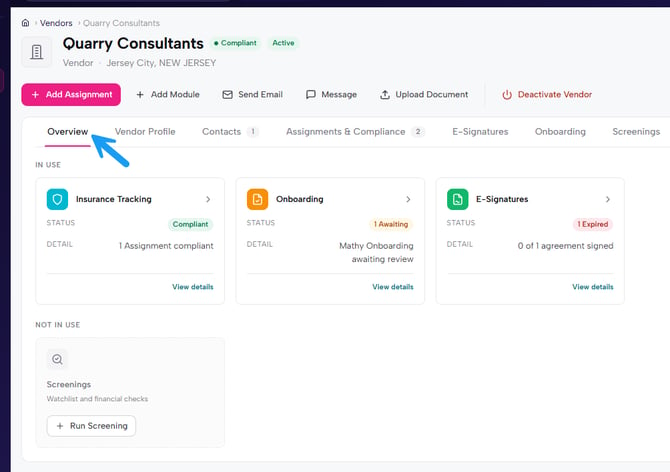
- 🏢 Open the new Overview tab. Click any company, and its record now opens on Overview. The In Use cards show each active module's status and details, like "1 Assignment compliant," "1 Awaiting," or "0 of 1 agreement signed."
- ➡️ Go straight to the details. Click View details on any module card to open that module's tab for the vendor.
- ➕ Start a module that isn't in use yet. Not In Use lists the modules this vendor doesn't use yet, with a quick action to get started (for example, Run Screening).
Getting started
- Open Directory from the left-hand menu.
- Check the Compliance and Modules columns, or click a Modules chip to filter the list.
- Click a company name to open its Overview tab.
- Click View details on a module card to go to that module.
Questions? Email customersupport@getbcs.com · help.getbcs.com