![BCS_Logo_Horizontal_Reverse_CMYK - Copy-1.png]](https://help.getbcs.com/hs-fs/hubfs/BCS_Logo_Horizontal_Reverse_CMYK%20-%20Copy-1.png?height=40&name=BCS_Logo_Horizontal_Reverse_CMYK%20-%20Copy-1.png)
Availability: Full-Service (Software + Managed Services) clients only. Only users set up as Admins can submit location requests.
Overview
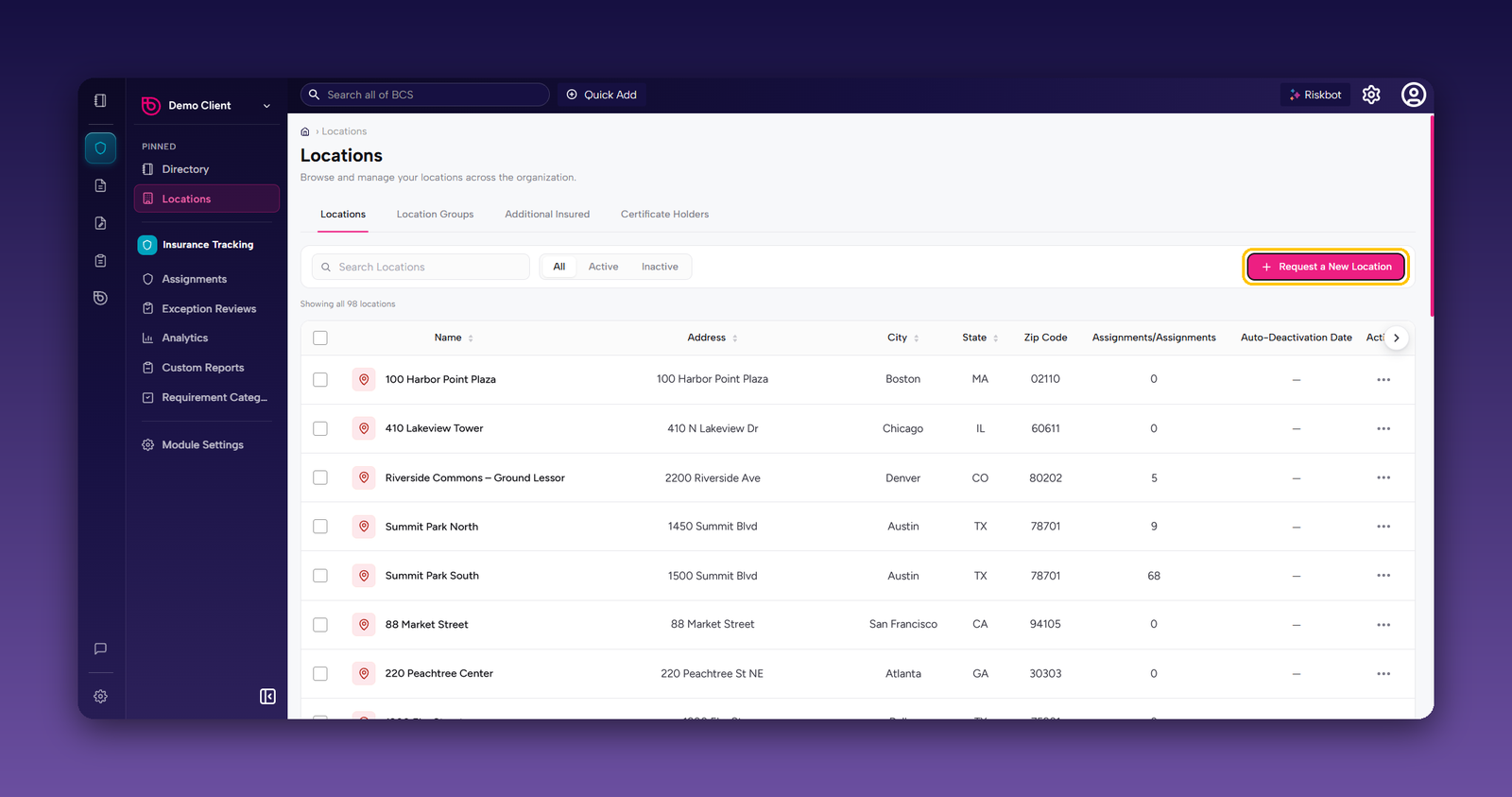
Full-Service Admins can now ask the BCS team to add a new location right from the Locations page — no email needed. 🏢 Fill in what you know about the site, add any notes, and click Send Request. Your request goes straight to your account team's workflow queue, and they'll follow up.
Background
Because BCS manages your compliance program, our team sets up your locations for you. Until now, that meant emailing us with the details of each new site. Requests could get buried in inboxes, and it wasn't always clear what information we needed. 📬
What's new
- ➕ A Request a New Location button on the Locations tab of the Locations page.
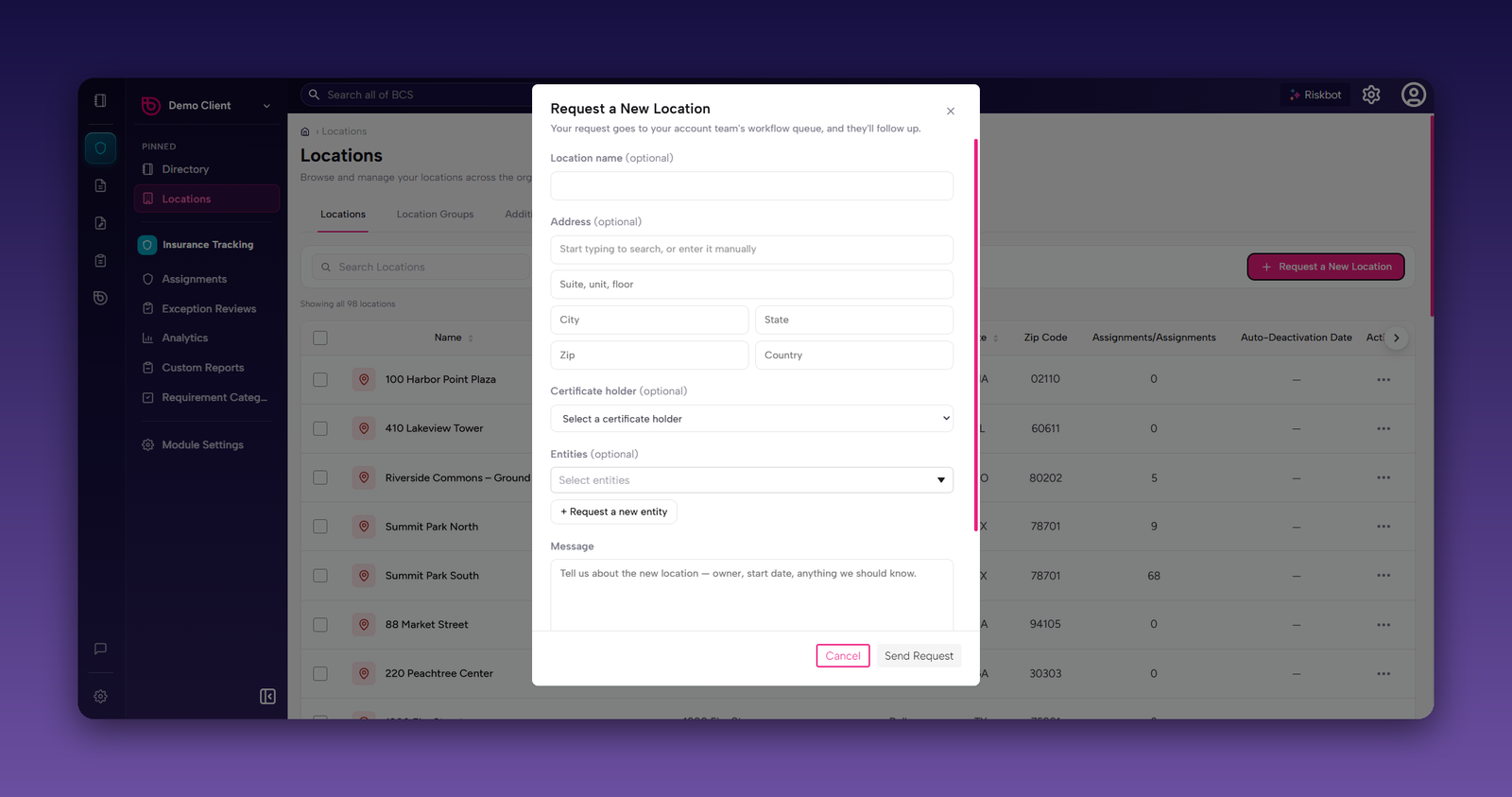
- 📝 A simple form that captures the location name, address, certificate holder, entities and any notes in one place.
- 🔁 Requests land directly in your account team's workflow queue, so nothing gets lost and follow-up is tracked.
- 🏷️ Need an entity that isn't set up yet? Request it from the same form with + Request a new entity.
📍 How to request a new location
- Open Locations. Click Locations in the left menu and stay on the Locations tab.
- Click + Request a New Location in the top right, above the list of locations.
- Fill in what you know. Every field is optional, so share whatever details you have (see the field guide below).
- Add a message. Tell us about the new location — the owner, the start date and anything else we should know.
- Click Send Request. Your account team receives the request in their workflow queue and will follow up with you. ✅
🗂️ Field guide
- Location name — what your team calls the site, property or project.
- Address — start typing to search for the address, or enter it manually. Add the suite, unit or floor, city, state, zip and country as needed.
- Certificate holder — choose the entity that belongs in the certificate holder box of the COI.
- Entities — select the entities that must appear on certificates for this location. If one is missing, click + Request a new entity.
- Message — the owner, start date and any special requirements or context for our team.
Tips
- 💡 The more you include, the faster we can set things up. A name, an address and a short message cover most requests.
- 💡 Don't see the Request a New Location button? Only Admins can submit requests — ask an Admin on your team, or contact us.
- 💡 Need to remove a location instead? See How to remove a location.
Questions? Reach out to your Customer Success Manager or email customersupport@getbcs.com. 📬