![BCS_Logo_Horizontal_Reverse_CMYK - Copy-1.png]](https://help.getbcs.com/hs-fs/hubfs/BCS_Logo_Horizontal_Reverse_CMYK%20-%20Copy-1.png?height=40&name=BCS_Logo_Horizontal_Reverse_CMYK%20-%20Copy-1.png)
Availability: All clients (Self-Service and Full-Service).
Overview
Locations get added, vendors change, requirements evolve. 🔄 You can send any of these requests to BCS, and keep track of them, without leaving the app.
Submit a request 📨
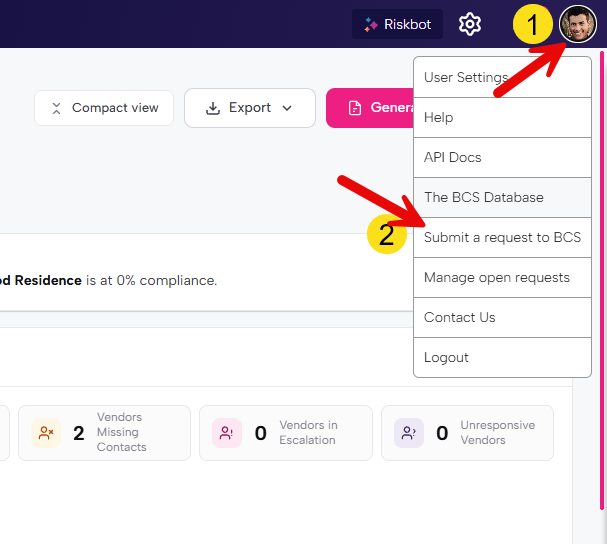
Step 1: Click your profile avatar in the top right corner.Step 2: Choose Submit a request to BCS. The menu also includes User Settings, Help, API Docs, The BCS Database, Manage open requests, Contact Us, and Logout.
-
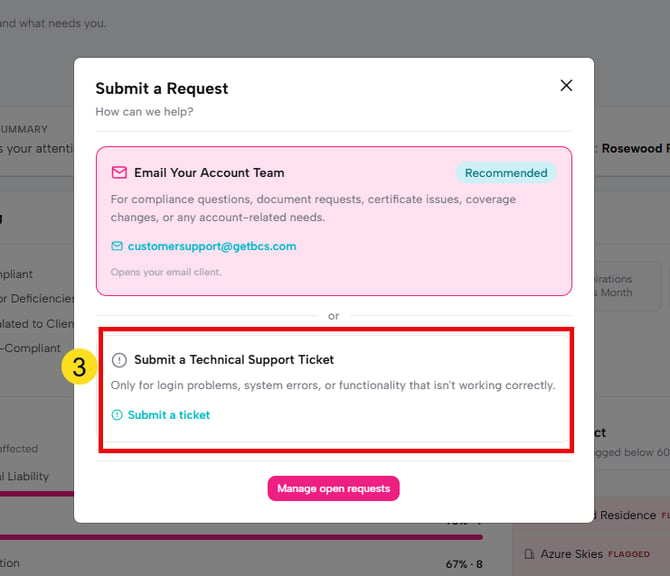
- Email Your Account Team (Recommended): for compliance questions, document requests, certificate issues, coverage changes, or any account-related needs. It opens your email client, addressed to customersupport@getbcs.com.
- Submit a Technical Support Ticket: only for login problems, system errors, or functionality that isn't working correctly. Click Submit a ticket.
A Manage open requests button is at the bottom of this window.
Open a technical support ticket 🛠️
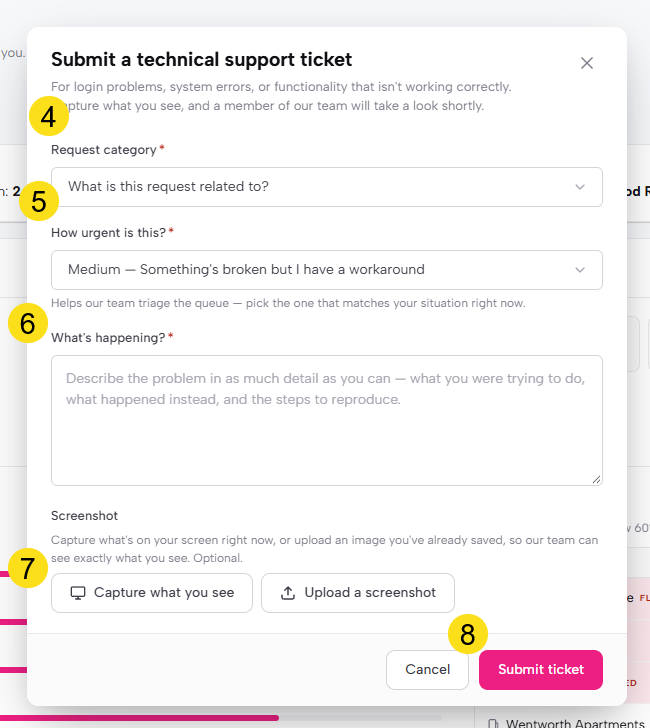
If you chose Submit a ticket, fill in the form:
Step 4: Request category (required): choose what the request is related to. The field asks, What is this request related to?Step 5: How urgent is this? (required): pick the option that matches your situation so our team can triage the queue. For example, Medium — Something's broken but I have a workaround.
Step 6: What's happening? (required): describe what you were trying to do, what happened instead, and the steps to reproduce.
Step 7: Screenshot (optional): click Capture what you see or Upload a screenshot so our team can see exactly what you see.
Step 8: Click Submit ticket.
Track your requests 👀
Click your profile avatar and choose Manage open requests (also available at the bottom of the Submit a Request window). This opens the BCS support portal, which has its own sign-in. Once you're signed in, you can check the status of your open requests.
Need help? 🙋
Questions? Email customersupport@getbcs.com · help.getbcs.com